

NHUE Resource Editor Takes a Big Step Forward: Live Materials, Prefab Editing, and Faster Browsing
I have been doing a lot of work on the Night Hawk’s Ultimate Editor Resource Editor lately, and this update turned into a pretty big one.
The Resource Editor started as a place to browse, preview, and inspect project assets inside NHUE, but it is growing into something much more useful. It is becoming the place where prefabs, materials, components, and project resources can be worked on in a more direct way.
The goal is not to copy Unity’s Project window or Prefab Mode exactly. I want the Resource Editor to feel like it belongs inside NHUE. It should help me preview resources better, organize prefabs faster, edit things with less jumping around, and grab clean screenshots when I need to show progress.
This update covers a lot: material previewing, prefab selection, rectangle select, transform editing, component commands, hierarchy tools, screenshot modes, folder performance, diagnostics, and a bunch of smaller quality-of-life fixes that add up.
There is still plenty to polish, but this is a really good step toward the Resource Editor becoming a real prefab and resource workspace inside NHUE.
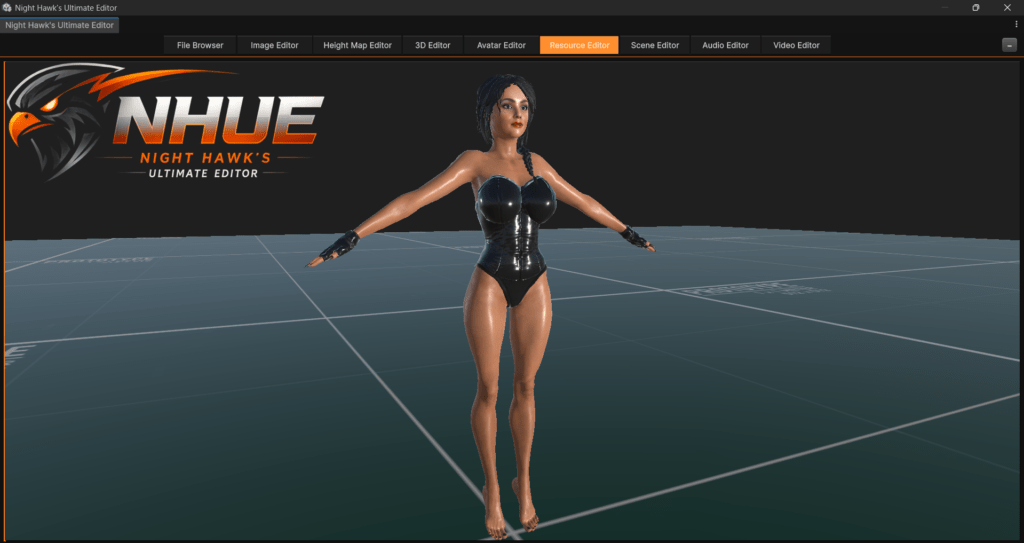
Live Material Owner Preview
Select a material and preview the real mesh or prefab that uses it.
Prefab Multi-Selection
Select multiple prefab children in the viewport and hierarchy.
Rectangle Selection
Drag-select prefab objects with NHUE-orange viewport selection.
Live Transform Tools
Move, rotate, scale, copy/paste values, and use linked scale.
Hierarchy Organization
Auto group, ungroup, rename, drag reparent, and reorder prefab objects.
Screenshot Workflow
Use screenshot mode and Shift+C to capture clean viewport shots.
A Better Way To Preview Materials
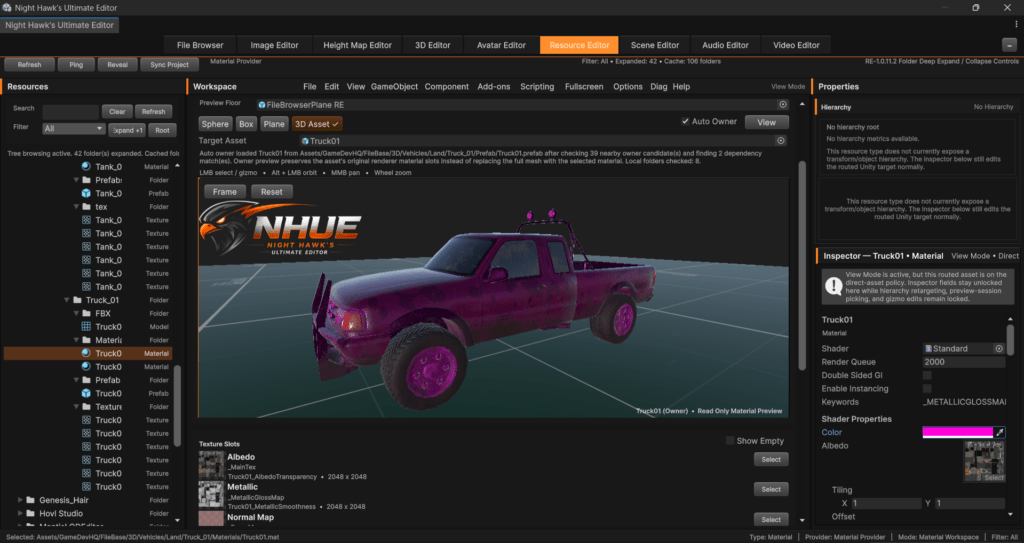
One of my favorite things added in this update is the new material-owner preview system.
Usually when you select a material in Unity, you are looking at the material by itself. You might see it on a preview ball, or you might need to go hunt down the mesh that uses it somewhere else in the project. That works, but it is not always the nicest workflow.
When I am editing a character, vehicle, prop, mech, weapon, or anything with multiple material slots, I do not just want to see the material by itself. I want to see it on the actual object that uses it.
That is what the Resource Editor can do now.
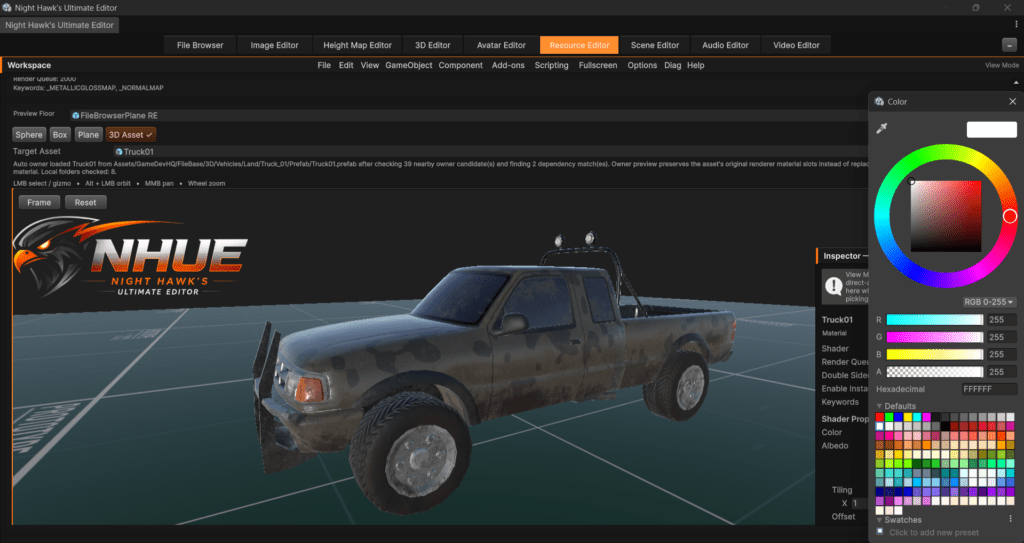
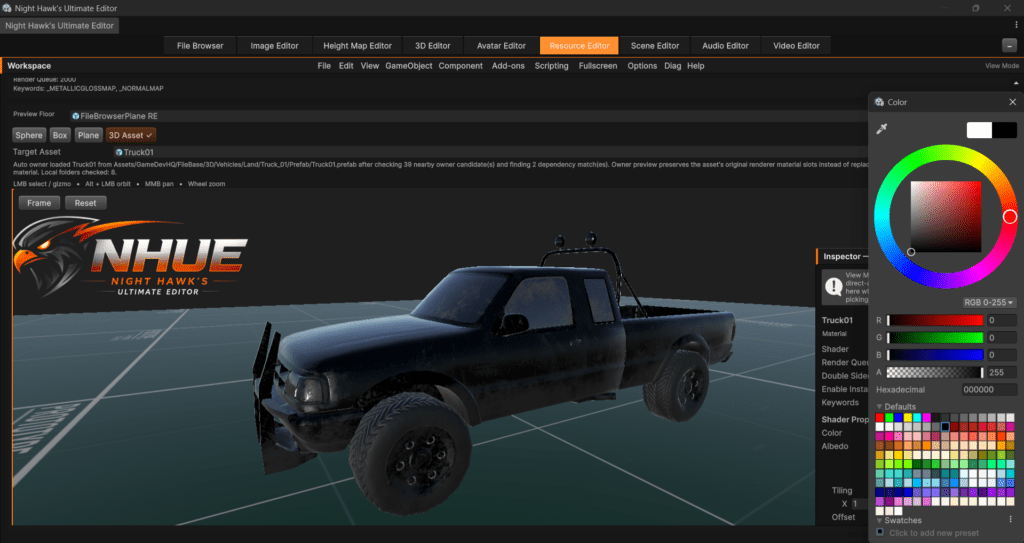
If I select a material, RE can try to find the prefab or model that uses that material and load it into the preview. The important part is that it keeps the original material setup intact. It does not just paint the selected material across the whole mesh. The object still looks like the real asset, with the rest of its material slots preserved.
That means I can see where the selected material actually lives on the model and how it looks beside the other materials that belong to the same asset.
This ended up being a really nice improvement over only previewing a material in isolation.
The material-owner system also had to be careful about performance. At first, searching for the owner could get too heavy if it tried to scan too much of the project. So now it uses smarter local searching. It checks nearby folders, especially folders with names like Prefab, Prefabs, Model, Models, FBX, Mesh, and Meshes. That is usually where the owner is going to be anyway.
It also clears stale preview meshes, so the wrong model does not hang around when selecting a completely different material.
This is one of those features that seems small at first, but once it works, it changes how useful the material workflow feels.
Prefab Multi-Selection Is In
Another big part of this update was improving prefab selection.
The Resource Editor can now select more than one object inside a prefab preview. This works in both the viewport and the hierarchy. I can select multiple prefab children, see them highlighted in the viewport, and also see all of them highlighted in the hierarchy.
The selection styling uses the NHUE orange look, so it matches the 3D Editor better and keeps the editor feeling consistent. The active object is still treated as the main Inspector target, but RE now understands the full selection set too.
That opens the door for much better prefab editing. Instead of editing one object at a time, I can select a group of parts and move, rotate, scale, hide, duplicate, delete, organize, or group them together.
This is a big step toward making RE feel like a real prefab editing environment.
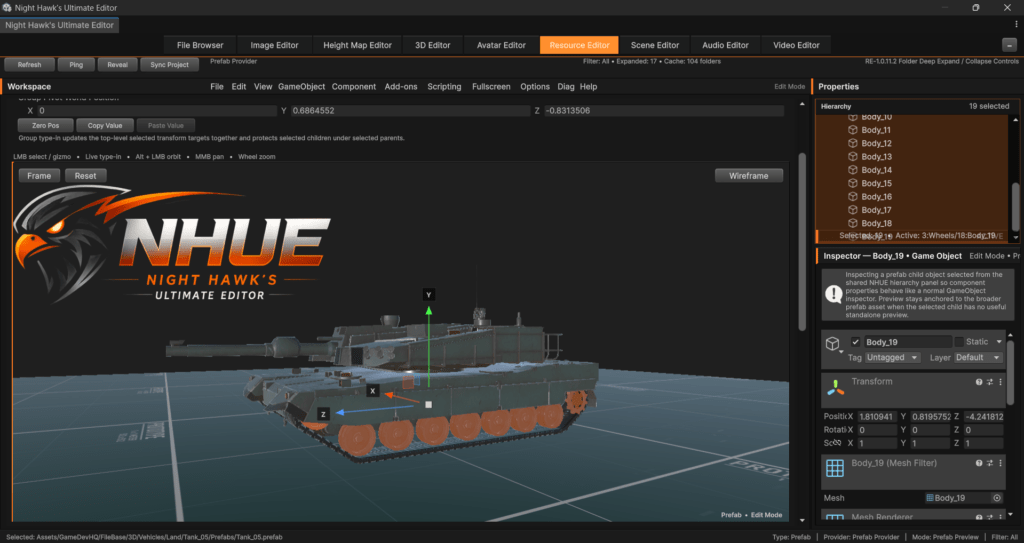
Rectangle Selection For Prefabs
The Resource Editor now has rectangle selection in the prefab viewport.
This is a big workflow improvement because it lets me drag a box over the viewport and select multiple prefab objects at once. The selection rectangle uses the same NHUE orange translucent look as the 3D Editor selection box.
The rectangle selection supports the usual workflows too:
- Drag to replace the selection.
- Ctrl/Cmd drag to add.
- Shift drag to subtract.
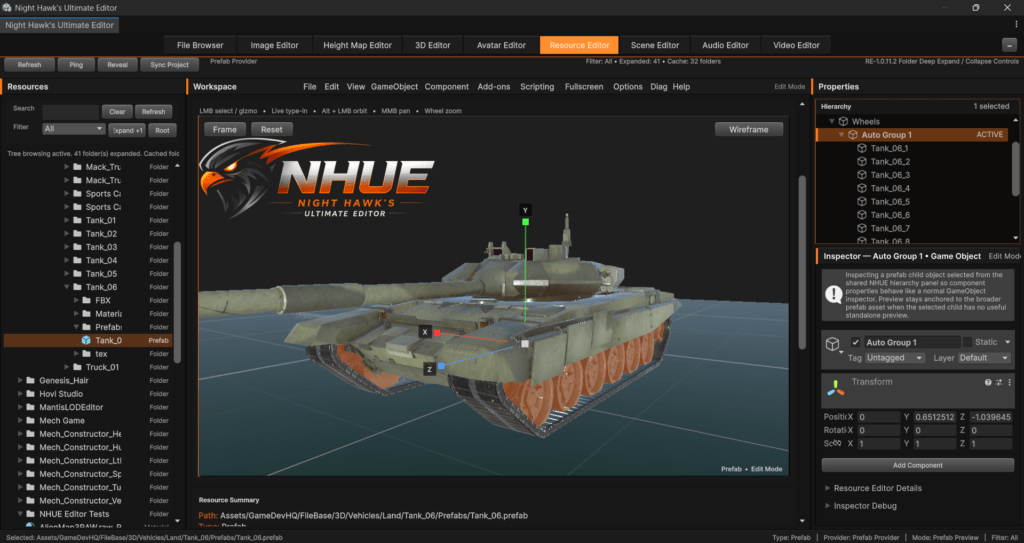
One of the extra things added here was parent/container selection support. Some prefab objects are just empty parent objects with child meshes under them. For example, a Wheels parent might not have its own mesh, but it contains all the wheel meshes. The rectangle selection can now promote those parent/container objects when their visible children are captured.
That makes selecting grouped prefab parts a lot more useful.
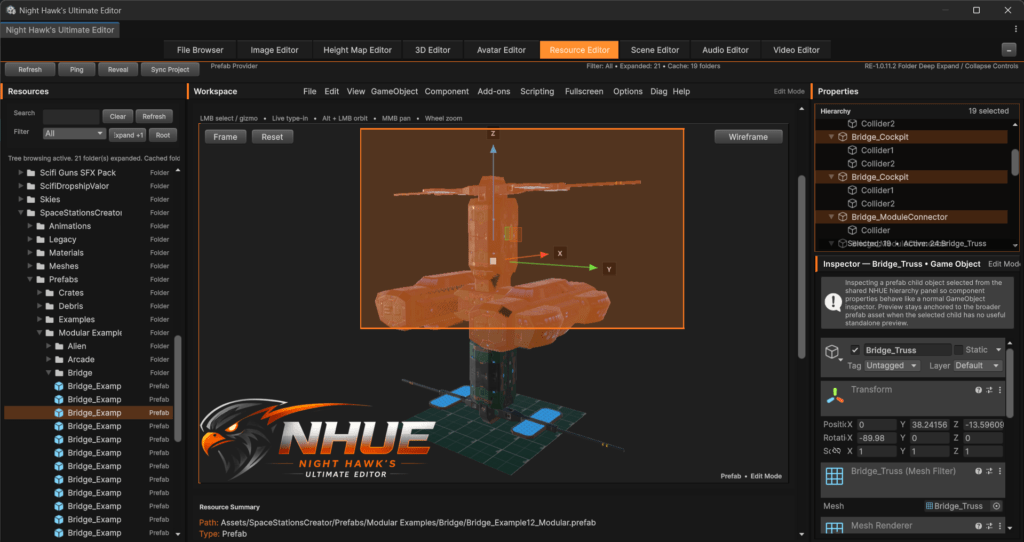
Multi-Object Move, Rotate, And Scale
Once multi-selection was working, the next step was making it useful.
The Resource Editor now supports multi-object transform editing. Selected prefab objects can be moved, rotated, and scaled together. This works with single objects and with multi-selected groups.
It also has safety for parent/child overlap. If a parent and one of its children are both selected, RE avoids double-transforming the child. That was important because prefab hierarchies can get messy fast if transforms are applied twice.
There is also a Top Level cleanup option that can collapse a mixed parent/child selection down to the actual top-level transform targets. That makes group editing safer and easier to understand.
This is one of the updates that makes the Resource Editor feel less like a passive preview window and more like an actual editing space.
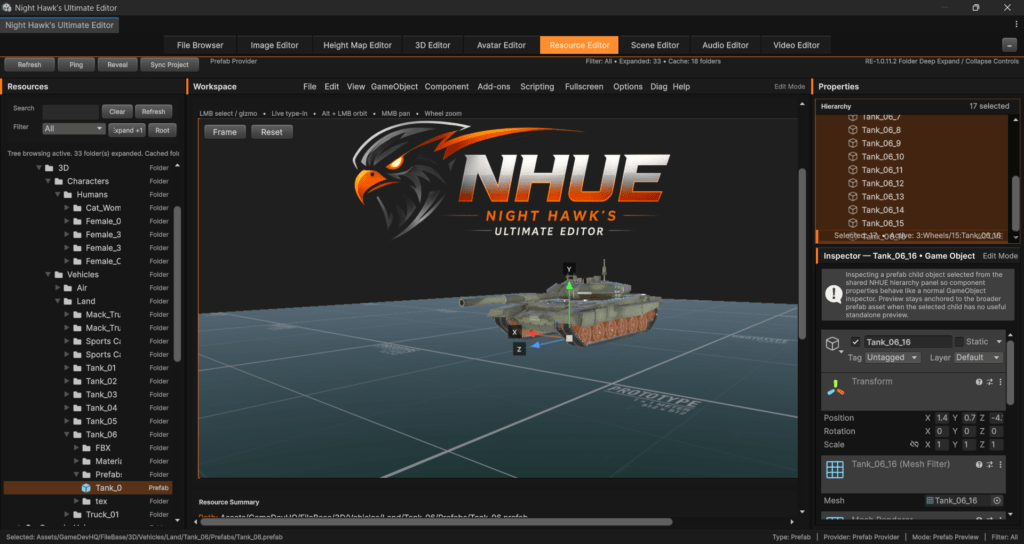
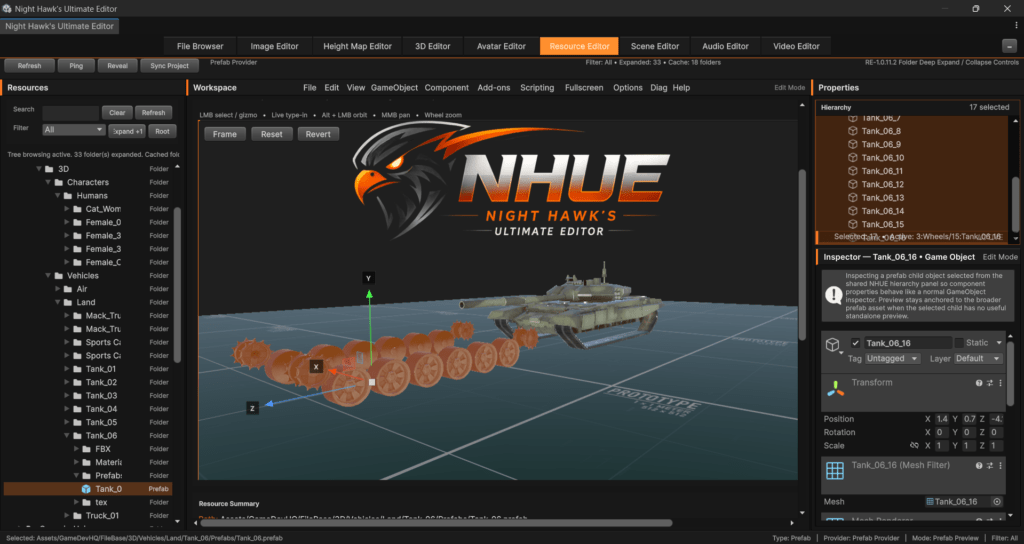
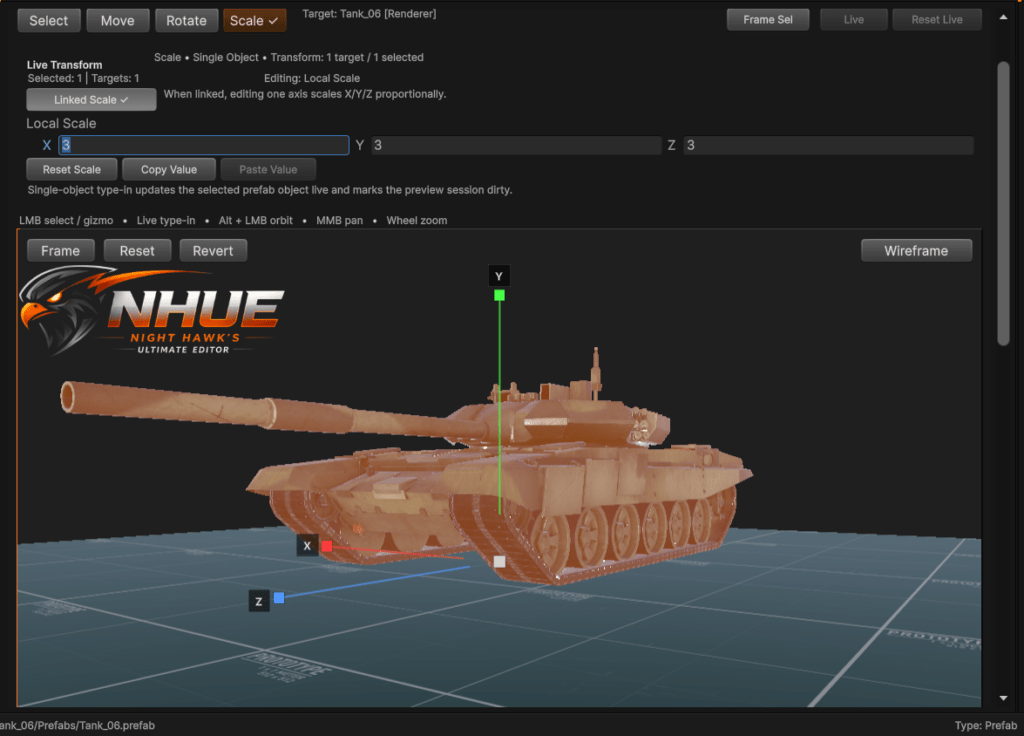
Live Transform Type-In
The Resource Editor now has a live transform type-in area above the preview.
This is for fast editing without needing to open a separate popup every time. It supports:
- World Position
- World Rotation
- Local Scale
Everything is live. There is no Apply button. If I edit a value, it updates right away. That is how I want NHUE tools to feel. They should be responsive and immediate.
The live transform strip works for single objects and selected groups. It also shows the selected count and the actual transform target count, which is useful when the selection contains parent/child overlap.
A few extra quality-of-life features were added here too:
- Zero Position
- Zero Rotation
- Reset Scale
- Copy Value
- Paste Value
- Linked Scale / Constrained Proportions
The linked scale option works like Unity’s constrained proportions feature. If it is enabled, changing one scale axis keeps the other axes linked. That is really useful for prefab editing, especially when scaling a whole group.
Right-Click Quick Transform Popups
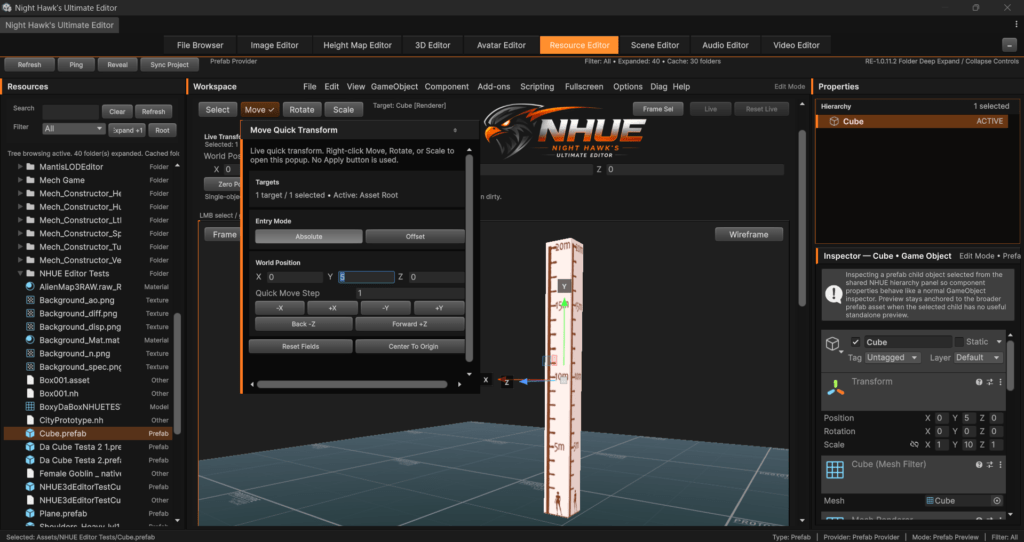
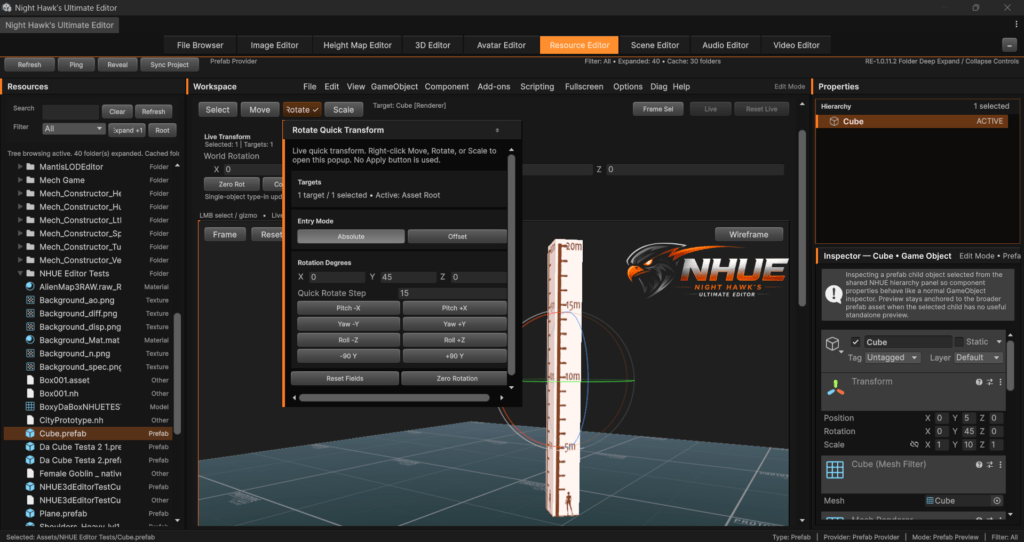
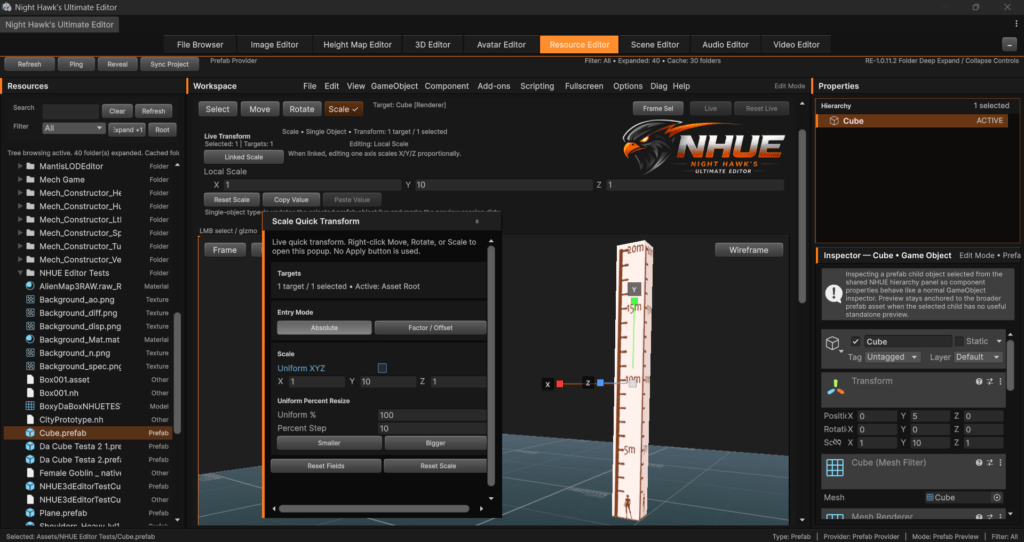
The Resource Editor also got right-click quick transform popups for Move, Rotate, and Scale.
This was inspired by the 3D Editor’s quick transform popup system and by 3ds Max-style workflows, but the RE version uses its own prefab-safe transform system. The reason is simple: the Resource Editor needs to work with prefab groups, multi-selection, and parent/child protection. The 3D Editor version was useful as inspiration, but RE needed its own version.
Right-clicking Move, Rotate, or Scale opens a popup with more quick controls. It does not instantly close after right-clicking, and it updates live just like the normal transform strip.
So now RE has two transform workflows:
The always-visible quick type-in strip for fast changes.
The right-click popup for bigger or more focused transform changes.
Both support single objects and multi-selected groups.
Prefab Commands And Object Creation
A lot of the prefab command system has been expanded too.
The Resource Editor can now handle a growing list of prefab-session commands, including things like:
- Create Empty
- Create Empty Child
- Create Empty Parent
- Create primitives
- Create lights
- Create cameras
- Create audio sources
- Create particle systems
- Copy
- Paste
- Duplicate
- Delete
- Reset Transform
- Frame Selected
- Toggle Active State
The important part is that these are becoming part of a shared prefab command system instead of being random one-off buttons. The command system can report status, block unsafe actions, update the prefab session, and show what happened through diagnostics.
This matters because RE is moving toward being a real prefab construction and editing workspace. I want to be able to build, adjust, organize, and clean up prefab resources directly inside the Resource Editor.
Component Commands
The Resource Editor also has a component command layer now.
This includes commands like:
- Add Component
- Remove Component
- Toggle Component Enabled
- Reset Component
- Copy Component
- Paste Component Values
This is important because prefab editing is not only about moving objects around. Components are a huge part of Unity assets. Being able to add, remove, reset, toggle, and copy/paste component values inside RE pushes it closer to a proper prefab editing workspace.
This still needs more polish over time, but the foundation is there now.
Drag And Drop Resource Assembly
Another area that is starting to come together is drag/drop resource assembly.
The Resource Editor has support for routing dropped resources into active prefab sessions. This is the kind of workflow that can eventually make RE feel more like a visual construction space for project resources.
The current direction includes handling dropped resources like:
- GameObject assets
- Mesh assets
- Materials
- Audio clips
It also has safety checks, like blocking a prefab from being dropped into itself. Material drops can target selected renderer objects.
This is still one of those features that will keep growing over time, but it is worth mentioning because it points to where RE is going: not just previewing resources, but assembling and editing them.
Auto Group, Ungroup, And Rename
Prefab organization got a major boost.
The Resource Editor now has Auto Group Selected. When I select multiple prefab objects, I can automatically create a new group container for them. The group gets named something like Auto Group 1, Auto Group 2, and so on. The selected objects move under that new group while keeping their world transforms.
That makes it much easier to clean up imported prefabs or organize complex objects.
There is also Ungroup Selected, which moves children out of a group and can remove empty transform-only group containers when it is safe to do so.
Prefab object rename was added too. This is different from renaming an asset in the Resource panel. This is for renaming live prefab child objects in the prefab hierarchy. It can be done from the context menu, and double-click inline rename is supported too.
This makes the hierarchy feel a lot more complete.
Hierarchy Drag Reparent And Reorder
The prefab hierarchy can now be organized more directly.
Objects can be dragged onto other objects or groups to reparent them. Multi-selection works here too, so selected objects can be moved under a group together. The system preserves world transforms and blocks invalid drops like dragging a parent into its own child.
Reordering is supported too. You can drag objects between sibling rows, and RE shows an NHUE-orange insertion line so you can see where the object will be placed.
Keyboard navigation was also added:
- Up Arrow selects the previous visible row.
- Down Arrow selects the next visible row.
- Ctrl + Up moves selected objects up one sibling slot.
- Ctrl + Down moves selected objects down one sibling slot.
If something cannot move any farther, RE shows a small message like End of list.
This is one of those workflow things that makes the hierarchy feel much more like an editor and not just a tree display.
Visibility Tools For Editing And Screenshots
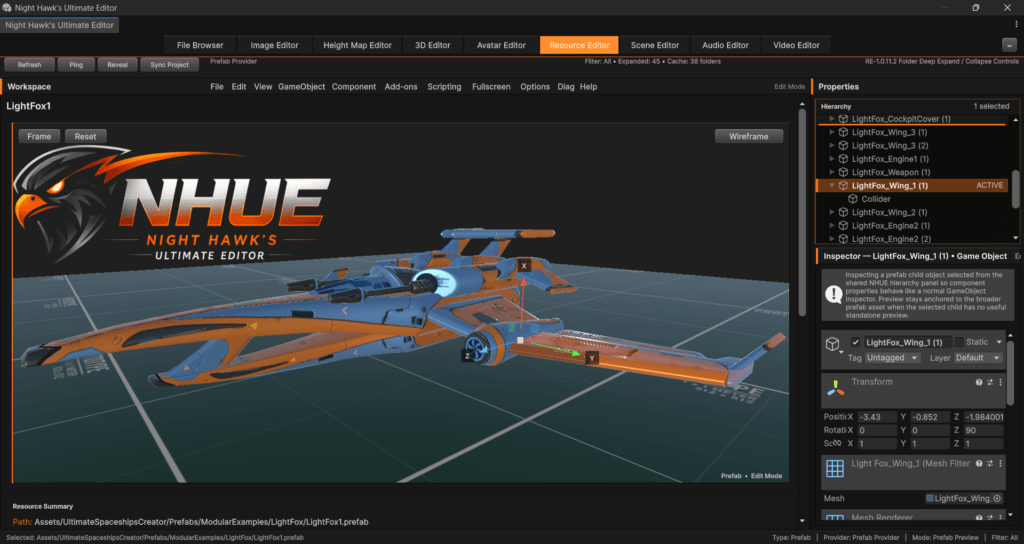
The Resource Editor now has quick hide/show tools.
Shift + H hides the selected prefab object or selected group. If the selected object is already hidden and still selected in the hierarchy, Shift + H can show it again.
There are also recovery commands:
Show Last Hidden
Unhide All Hidden
This is really useful for working on complex prefabs. Sometimes I need to hide a part of a model to see what is behind it. It is also useful for screenshots because I can quickly hide clutter or helper objects.
Fullscreen And Screenshot Modes
The Resource Editor now has a better Fullscreen menu.
There are modes for:
- Maximize Preview
- Immersive Preview Mode
- Screenshot View Mode
- Hide Resource Panel
- Hide Inspector / Right Panel
- Hide Preview Toolbars
- Restore Default Layout
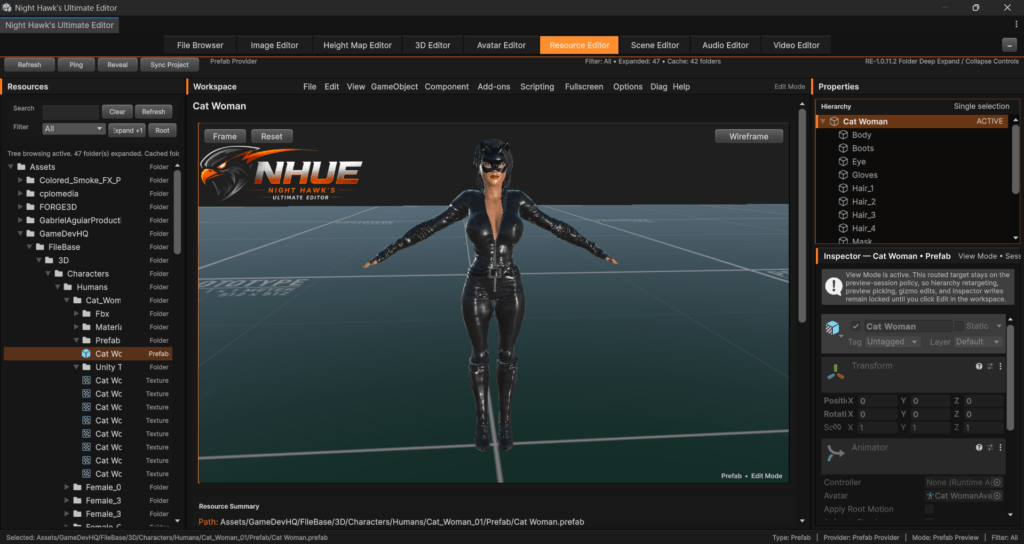
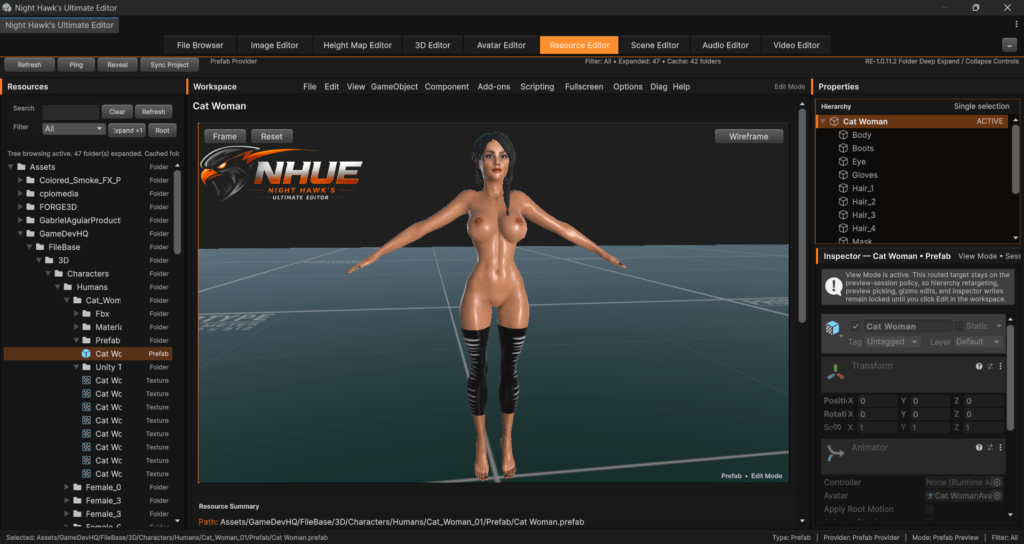
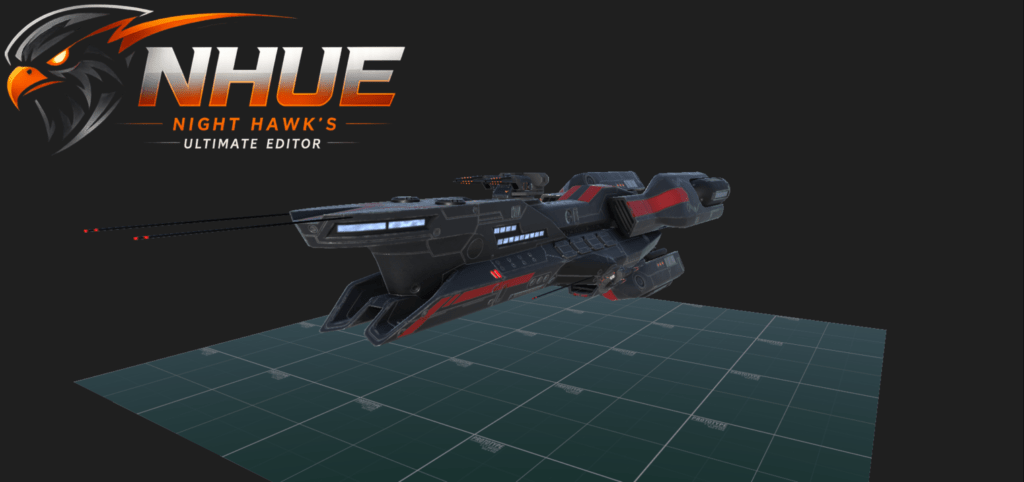
Screenshot View Mode is especially useful for the website. It hides the extra UI and leaves the viewport content visible. That means I can take clean shots of the prefab or material preview without needing to crop around panels and toolbars.
Immersive Preview Mode is more of a focused editing mode. It can keep the Inspector visible, which is useful when I still want to edit or inspect things while getting a bigger viewport.
Escape exits the larger preview modes, which keeps it easy to get back to the normal layout.

Shift + C Viewport Screenshot To Clipboard
This is a small feature, but I really like it.
Shift + C now captures the Resource Editor preview viewport and copies it directly to the Windows clipboard. It does not save image files. It just lets me paste the screenshot wherever I want, like into an image editor, Discord, or a blog draft.
This works really well with Screenshot View Mode. It makes grabbing clean website images much faster than using Print Screen and manually cropping everything.
Resource Editor Options
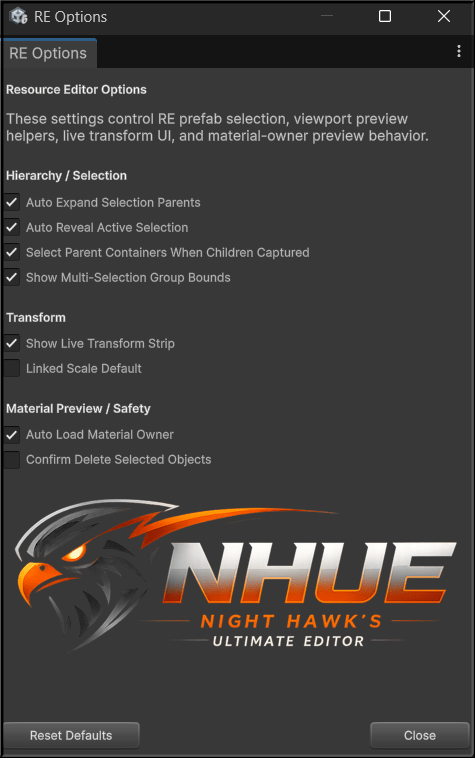
RE now has its own Options menu.
The menu order now includes:
File, Edit, View, GameObject, Component, Add-ons, Scripting, Fullscreen, Options, Diag, Help
The Options menu includes RE-specific settings like:
- Auto Expand Selection Parents
- Auto Reveal Active Selection
- Select Parent Containers When Children Captured
- Show Multi-Selection Group Bounds
- Show Live Transform Strip
- Linked Scale Default
- Auto Load Material Owner
- Confirm Delete Selected Objects
This is important because the Resource Editor now has enough of its own workflow that it needs editor-specific settings. This also gives room for more options later without stuffing everything into random menus.
Resource Panel Performance Upgrade
The Resource panel also got a big performance update.
Before this, expanding all folders could get very slow in a large Unity project. In one test, it took over 12 minutes and Unity had to be force-closed. That obviously was not okay.
Opening a folder should be quick, and the editor should not load or scan a bunch of stuff that is not needed yet.
This update changed how the folder tree handles project folders.
- Folder child loading is now cached and lazy.
- Opening a folder focuses on direct children instead of scanning everything recursively.
- The tree avoids loading asset objects just to draw rows.
- Classification is more path and extension based.
- Large folders use paging with Show more.
- Root now cancels expansion, collapses folders, selects Assets, and resets the view.
- Expand is now safer as Expand +1 instead of trying to open the whole project at once.
There are also new folder controls:
- Double-click a folder to deep expand/collapse that folder tree.
- Right-click a folder for Expand All Inside / Collapse All Inside.
- Deep expand is scoped to the clicked folder instead of the whole project.
This made the folder system much more usable. It still leaves room for more performance polish later, but the dangerous long hang behavior is much better now.
Diagnostics And Stability Work
A lot of diagnostics were added or expanded during this update too.
RE diagnostics now track things like:
- Resource selection
- Folder tree and search state
- Folder cache and expand performance
- Provider capability
- Edit Mode / View Mode routing
- Inspector/edit bridge state
- Prefab multi-selection
- RE Options state
- Fullscreen/screenshot state
- Material-owner preview context
- Rectangle selection
- Transform operations
- Live type-in results
- Prefab command results
- Drag/drop and reparent actions
- Component command state
- GUI/repaint tracking
- Event trail
This might not sound as flashy as the visible tools, but it is important. NHUE is getting bigger, and diagnostics make it much easier to understand what is happening when something slows down or breaks.
Why This Update Matters
The Resource Editor is starting to feel like a real workspace now.
It is letting me inspect, organize, edit, transform, group, rename, hide, capture, and preview resources in context.
The live material-owner preview is probably the easiest feature to show off, because it is instantly understandable. Select a material, and see it on the real mesh that uses it.
The prefab workflow is the bigger long-term piece. Multi-selection, rectangle selection, group transforms, hierarchy drag reparenting, auto grouping, live transform controls, component commands, and resource drops all add up. Each piece on its own is useful, but together they make the Resource Editor feel like it is becoming a serious part of NHUE.
The screenshot tools also help because they make it easier to show progress without fighting the UI. That matters for development posts, website images, and showing what NHUE can do.
What Comes Next
There is still more I want to do with the Resource Editor.
Some possible future upgrades include:
- Cleaner camera/helper icons in the RE preview.
- Optional hide helper icons in Screenshot Mode.
- Better prefab dirty/save/revert clarity.
- Nested prefab awareness.
- Isolation tools like Hide Unselected or Show Only Selected.
- Selection sets for complex prefabs.
- More component workflow polish.
- Prefab health diagnostics for missing scripts, missing meshes, missing materials, and broken references.
- More Resource panel performance polish.
But even at this point, the Resource Editor has taken a big step forward.
TL/DR
The NHUE Resource Editor got a major upgrade.
- Materials can now be previewed on the real mesh or prefab that uses them.
- Prefab multi-selection works in the viewport and hierarchy.
- Rectangle selection was added with NHUE-orange styling.
- Parent/container objects can be selected through their children.
- Multi-object Move, Rotate, and Scale are working.
- Live transform type-in, linked scale, and right-click quick transform popups are in.
- Prefab commands and component commands have grown a lot.
- Auto Group, Ungroup, Rename, drag reparent, and hierarchy reorder are in.
- Shift + H can hide/show selected prefab objects.
- Screenshot View Mode and Shift + C make clean website screenshots much easier.
- The Resource panel is faster and safer, with cached folder loading, Expand +1, Root collapse, folder paging, and folder deep expand/collapse controls.
- RE now has its own Options menu and expanded diagnostics.
Basically, the Resource Editor is becoming a real prefab and resource editing workspace inside NHUE.